Search Criteria Panel
The Search Criteria panel on the dlrSecured Mass Enrollment screen can be used to search for and enroll multiple employees in dlrSecured Identity Management. In addition, this panel can be used to unenroll employees from dlrSecured.

|
To access the Search Criteria panel, click the dlrSecured Mass Enrollment link on the More Menu. The Search Criteria panel displays on the dlrSecured Mass Enrollment screen. |
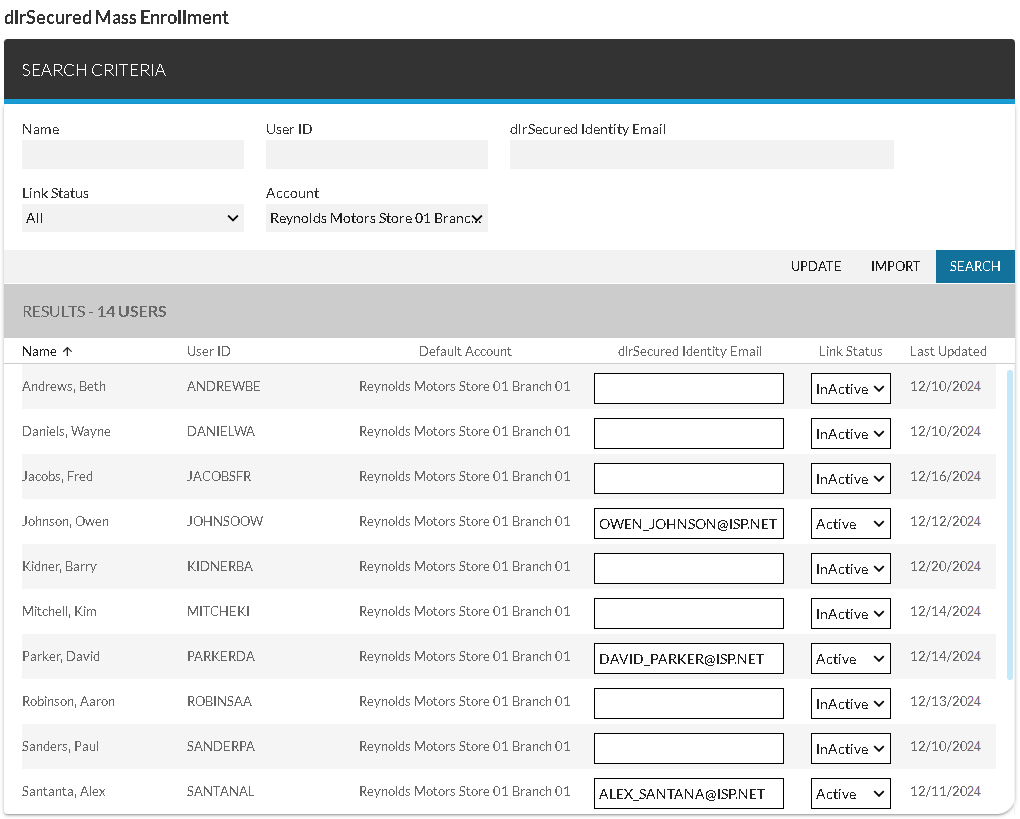
The Search Criteria section is used to enter criteria to search for employees for whom dlrSecured information should be updated. Enter criteria in this section and click the SEARCH button to display employees matching the entered criteria in the Results section. Then update employee information as needed, and click the UPDATE button to save the changes.
Note - For a procedure on enrolling employees using the Search Criteria panel, refer to How to Enroll Multiple Employees in dlrSecured Identity Management.
In addition, employees an be enrolled in dlrSecured by importing a file. Click the IMPORT button to display the dlrSecured List Import window, where employees can be enrolled in dlrSecured by importing a .csv file, .txt file, or .xlsx file.
Note - For a procedure on importing Email addresses for dlrSecured, refer to How to Import Email Addresses to Enroll Employees in dlrSecured Identity Management.
 Search Criteria Section
The Search Criteria section is used to enter criteria to search for employees for whom dlrSecured information should be updated.
The following items are available in the Search Criteria section.
Name: Enter the full or partial name of the employee.
User ID: Enter the full or partial User ID of the employee.
dlrSecured Identity Email: Enter the full or partial Email address linked to dlrSecured for the employee.
Link Status: Select whether the employee has been enrolled in dlrSecured.
Following are valid entries in the Link Status field.
-
All. Display all employees regardless of whether they are enrolled in dlrSecured.
-
Active. Only display employees who have been enrolled in dlrSecured.
-
InActive. Only display employees who have not been enrolled in dlrSecured.
Account: Select the XtreamService account to which the employee has access. Alternatively, select All to display employees for each XtreamService account to which you have access.
Results Section
The Results section is used to enroll employees in dlrSecured.
The following items are available in the Results section.
Name: The name of the employee displays.
User ID: The User ID of the employee displays.
Default Account: The default dealership account to which the employee has access displays.
Note - The employee's default dealership account is defined using the Edit User panel.
dlrSecured Identity Email: Enter the Email address to link to dlrSecured. This Email address is used by the employee to sign on to the XtreamService application using dlrSecured.
Link Status: Select whether the employee can sign on to the XtreamService application using dlrSecured. Select Active in this field to require the employee to sign on using dlrSecured. Alternatively, select InActive to require the employee to use the standard sign on process to access the XtreamService application.
Last Updated: The date on which the employee's dlrSecured status was last updated displays.
Click here for a list of products that may be mentioned in this help file.